
After you select a Client that account’s data will be populated automatically in the lower left corner of the New Job screen. This section is also identified as “Section #2” elsewhere in this Guide.
After the data are populated you may edit it. But understand how this works:
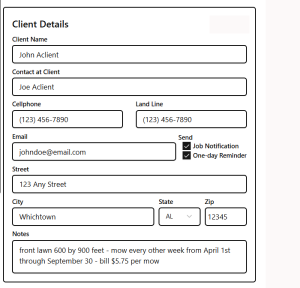
- Edits on the Job page do not change the original Client record.
- If you want to that, use the Navigation Menu > Clients List > Select a Client > Edit the Client Details > Save
- Likewise, edits to original Client Details in a Job record will NOT change the Client Details for Jobs already created..
Client Communications: Good Communications make for Happy Clients. There are two important messages you can send your Client. A3T make them easy.
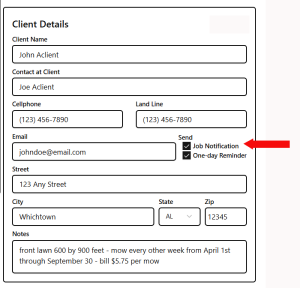
- Select the Job Notification
- The Client will get an email confirming the order
- Select the Reminder
- The Client will get a 24 hour Reminder
Notice are each optional because there may be situations or Clients preferences who don’t want notices Leave the boxes unchecked and they will not go out.